Summary: Security
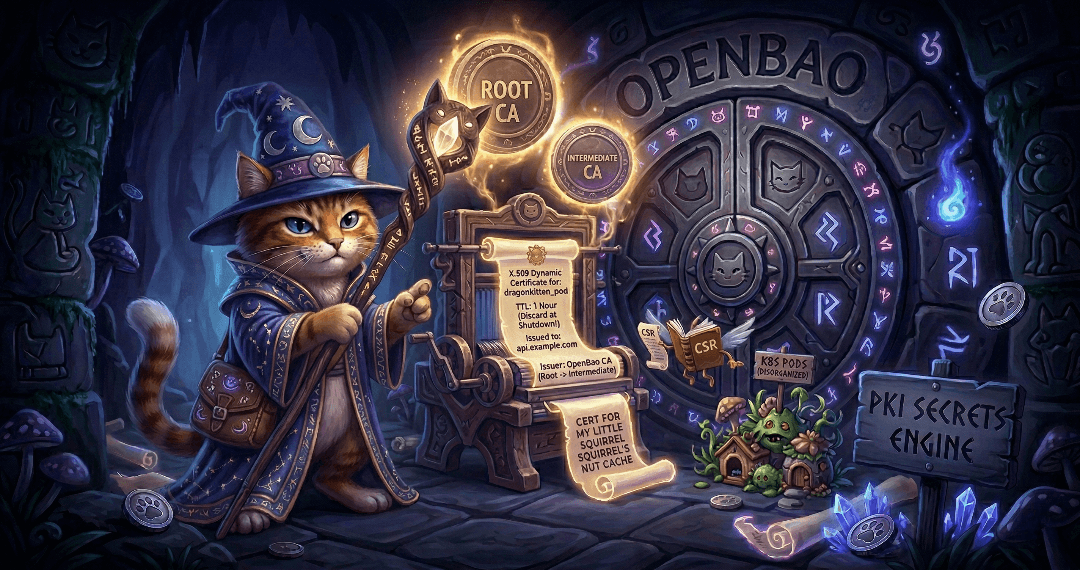
The Guide to OpenBao - Secrets Engines PKI - Part 9
 Thomas Jungbauer
Secrets engines are one of the most important concepts in OpenBao. Part 8 covered the KV secrets engine; this article covers the PKI secrets engine and its integration with cert-manager on Kubernetes and OpenShift.
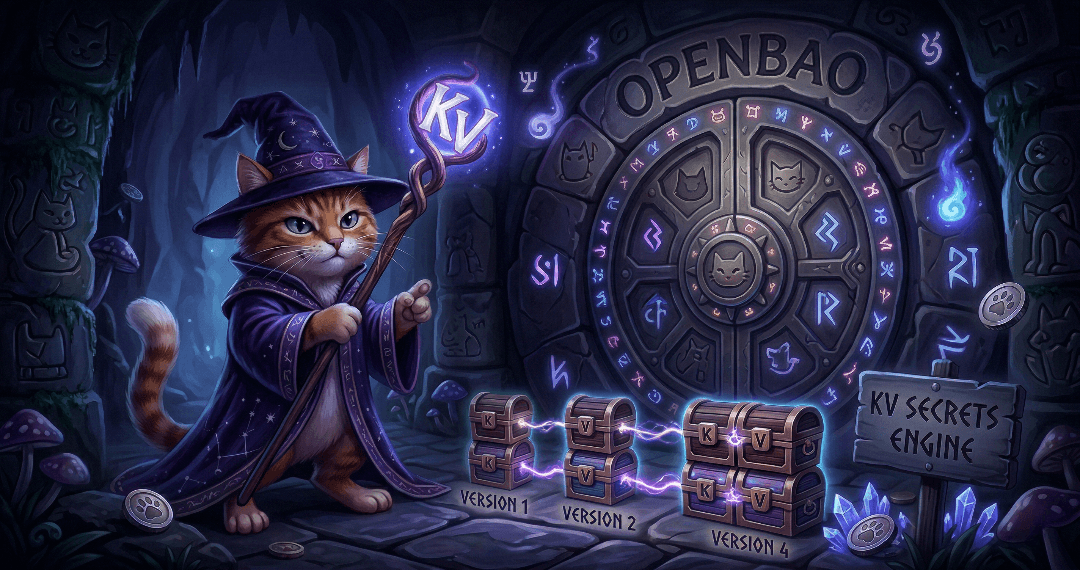
The Guide to OpenBao - Secrets Engines KV - Part 8
Secrets engines are the heart of OpenBao’s functionality. They store, generate, or encrypt data. This article covers the most commonly used secrets engine: KV for static secrets. It will demonstrate how to use the KV secrets engine to store and retrieve secrets. Upcoming articles will cover the PKI secrets engine and the integration with cert-manager.

The Guide to OpenBao - Authentication Methods - Part 7
With OpenBao deployed and running, the next critical step is configuring authentication. Ultimately, you want to limit access to only authorised people. This article covers two common authentication methods: Kubernetes for pods and LDAP for enterprise directories (in a simplified example). There are many more methods, but we cannot cover them all in this article.

The Guide to OpenBao - Initialisation, Unsealing, and Auto-Unseal - Part 6
After deploying OpenBao via GitOps (Part 5), OpenBao must be initialised and then unsealed before it becomes functional. You usually do not want to do this unsealing manually, since this is not scalable especially in bigger, productive environments. This article explains how to handle initialisation and unsealing, and possible options to configure an auto-unseal process so that OpenBao unseals itself on every restart without manual key entry.

The Guide to OpenBao - GitOps Deployment with Argo CD - Part 5
Following the GitOps mantra "If it is not in Git, it does not exist", this article demonstrates how to deploy and manage OpenBao using Argo CD. This approach provides version control, audit trails, and declarative management for your secret management infrastructure.

The Guide to OpenBao - Enabling TLS on OpenShift - Part 4
In Part 3 we deployed OpenBao on OpenShift in HA mode with TLS disabled: the OpenShift Route terminates TLS at the edge, and traffic from the Route to the pods is plain HTTP. While this is ok for quick tests, for a production-ready deployment, you should consider TLS for the entire journey. This article explains why and how to enable TLS end-to-end using the cert-manager operator, what to consider, and the exact steps to achieve it.

The Guide to OpenBao - OpenShift Deployment with Helm - Part 3
After understanding standalone installation in Part 2, it is time to deploy OpenBao on OpenShift/Kubernetes using the official Helm chart. This approach provides high availability, Kubernetes-native management, and seamless integration with the OpenShift ecosystem.

The Guide to OpenBao - Standalone Installation - Part 2
In the previous article, we introduced OpenBao and its core concepts. Now it is time to get our hands dirty with a standalone installation. This approach is useful for testing, development environments, edge deployments, or scenarios where Kubernetes is not available.

The Guide to OpenBao - Introduction - Part 1
I finally had some time to dig into Secret Management. For my demo environments, SealedSecrets is usually enough to quickly test something. But if you want to deploy a real application with Secret Management, you need to think of a more permanent solution.
This article is the first of a series of articles about OpenBao, a HashiCorp Vault fork. Today, we will explore what OpenBao is, why it was created, and when you should consider using it for your secret management needs. If you are familiar with HashiCorp Vault, you will find many similarities, but also some important differences that we will discuss.
Cert-Manager Policy Approver in OpenShift
One of the most commonly deployed operators in OpenShift environments is the Cert-Manager Operator. It automates the management of TLS certificates for applications running within the cluster, including their issuance and renewal.
The tool supports a variety of certificate issuers by default, including ACME, Vault, and self-signed certificates. Whenever a certificate is needed, Cert-Manager will automatically create a CertificateRequest resource that contains the details of the certificate. This resource is then processed by the appropriate issuer to generate the actual TLS certificate. The approval process in this case is usually fully automated, meaning that the certificate is issued without any manual intervention.
But what if you want to have more control? What if certificate issuance must follow strict organizational policies, such as requiring a specifc country code or organization name? This is where the CertificateRequestPolicy resource, a resource provided by the Approver Policy, comes into play.
This article walks through configuring the Cert-Manager Approver Policy in OpenShift to enforce granular policies on certificate requests.
Single log out from Keycloak and OpenShift
The following 1-minute article is a follow-up to my previous article about how to use Keycloak as an authentication provider for OpenShift. In this article, I will show you how to configure Keycloak and OpenShift for Single Log Out (SLO). This means that when you log out from Keycloak, you will also be logged out from OpenShift automatically. This requires some additional configuration in Keycloak and OpenShift, but it is not too complicated.
Step by Step - Using Keycloak Authentication in OpenShift
I was recently asked about how to use Keycloak as an authentication provider for OpenShift. How to install Keycloak using the Operator and how to configure Keycloak and OpenShift so that users can log in to OpenShift using OpenID. I have to admit that the exact steps are not easy to find, so I decided to write a blog post about it, describing each step in detail. This time I will not use GitOps, but the OpenShift and Keycloak Web Console to show the steps, because before we put it into GitOps, we need to understand what is actually happening.
This article tries to explain every step required so that a user can authenticate to OpenShift using Keycloak as an Identity Provider (IDP) and that Groups from Keycloak are imported into OpenShift. This article does not cover a production grade installation of Keycloak, but only a test installation, so you can see how it works. For production, you might want to consider a proper database (maybe external, but at least with a backup), high availability, etc.).
Introducing AdminNetworkPolicies
Classic Kubernetes/OpenShift offer a feature called NetworkPolicy that allows users to control the traffic to and from their assigned Namespace. NetworkPolicies are designed to give project owners or tenants the ability to protect their own namespace. Sometimes, however, I worked with customers where the cluster administrators or a dedicated (network) team need to enforce these policies.
Since the NetworkPolicy API is namespace-scoped, it is not possible to enforce policies across namespaces. The only solution was to create custom (project) admin and edit roles, and remove the ability of creating, modifying or deleting NetworkPolicy objects. Technically, this is possible and easily done. But shifts the whole network security to cluster administrators.
Luckily, this is where AdminNetworkPolicy (ANP) and BaselineAdminNetworkPolicy (BANP) comes into play.
Running Falco on OpenShift 4.12
 Toni Schmidbauer
As mentioned in our previous post about Falco, Falco is a security tool to monitor kernel events like system calls or Kubernetes audit logs to provide real-time alerts.
In this post I'll show to customize Falco for a specific use case. We would like to monitor the following events:
- An interactive shell is opened in a container
- Log all commands executed in an interactive shell in a container
- Log read and writes to files within an interactive shell inside a container
- Log commands execute via `kubectl/oc exec` which leverage the
pod/execK8s endpoint
Setting up Falco on OpenShift 4.12
Falco is a security tool to monitor kernel events like system calls to provide real-time alerts. In this post I'll document the steps taken to get Open Source Falco running on an OpenShift 4.12 cluster.
UPDATE: Use the falco-driver-loader-legacy image for OpenShift 4.12 deployments.
SSL Certificate Management for OpenShift on AWS
Finally, after a long time on my backlog, I had some time to look into the Cert-Manager Operator and use this Operator to automatically issue new SSL certificates. This article shall show step-by-step how to create a certificate request and use this certificate for a Route and access a service via your Browser. I will focus on the technical part, using a given domain on AWS Route53.
Secrets Management - Vault on OpenShift
Sensitive information in OpenShift or Kubernetes is stored as a so-called Secret. The management of these Secrets is one of the most important questions, when it comes to OpenShift. Secrets in Kubernetes are encoded in base64. This is not an encryption format. Even if etcd is encrypted at rest, everybody can decode a given base64 string which is stored in the Secret.
For example: The string Thomas encoded as base64 is VGhvbWFzCg==. This is simply a masked plain text and it is not secure to share these values, especially not on Git.
To make your CI/CD pipelines or Gitops process secure, you need to think of a secure way to manage your Secrets. Thus, your Secret objects must be encrypted somehow. HashiCorp Vault is one option to achieve this requirement.
Advanced Cluster Security - Authentication
Red Hat Advanced Cluster Security (RHACS) Central is installed with one administrator user by default. Typically, customers request an integration with existing Identity Provider(s) (IDP). RHACS offers different options for such integration. In this article 2 IDPs will be configured as an example. First OpenShift Auth and second Red Hat Single Sign On (RHSSO) based on Keycloak
Secure your secrets with Sealed Secrets
Working with a GitOps approach is a good way to keep all configurations and settings versioned and in sync on Git. Sensitive data, such as passwords to a database connection, will quickly come around. Obviously, it is not a idea to store clear text strings in a, maybe even public, Git repository. Therefore, all sensitive information should be stored in a secret object. The problem with secrets in Kubernetes is that they are actually not encrypted. Instead, strings are base64 encoded which can be decoded as well. Thats not good … it should not be possible to decrypt secured data. Sealed Secret will help here…
oc compliance command line plugin
As described at Compliance Operator the Compliance Operator can be used to scan the OpenShift cluster environment against security benchmark, like CIS. Fetching the actual results might be a bit tricky tough.
With OpenShift 4.8 plugins to the oc command are allowed. One of these plugin os oc compliance, which allows you to easily fetch scan results, re-run scans and so on.
Let’s install and try it out.
Compliance Operator
OpenShift comes out of the box with a highly secure operating system, called Red Hat CoreOS. This OS is immutable, which means that no direct changes are done inside the OS, instead any configuration is managed by OpenShift itself using MachineConfig objects. Nevertheless, hardening certain settings must still be considered. Red Hat released a hardening guide (CIS Benchmark) which can be downloaded at https://www.cisecurity.org/.
Copyright © 2020 - 2026 Toni Schmidbauer & Thomas Jungbauer